
Sorry, I'm not currently accepting new patients. Click here to browse a list of doctors who are!
Already a patient of this doctor?
Patients and/or proxies can book annual physicals online through MyChart.
Sign up or
log in now.
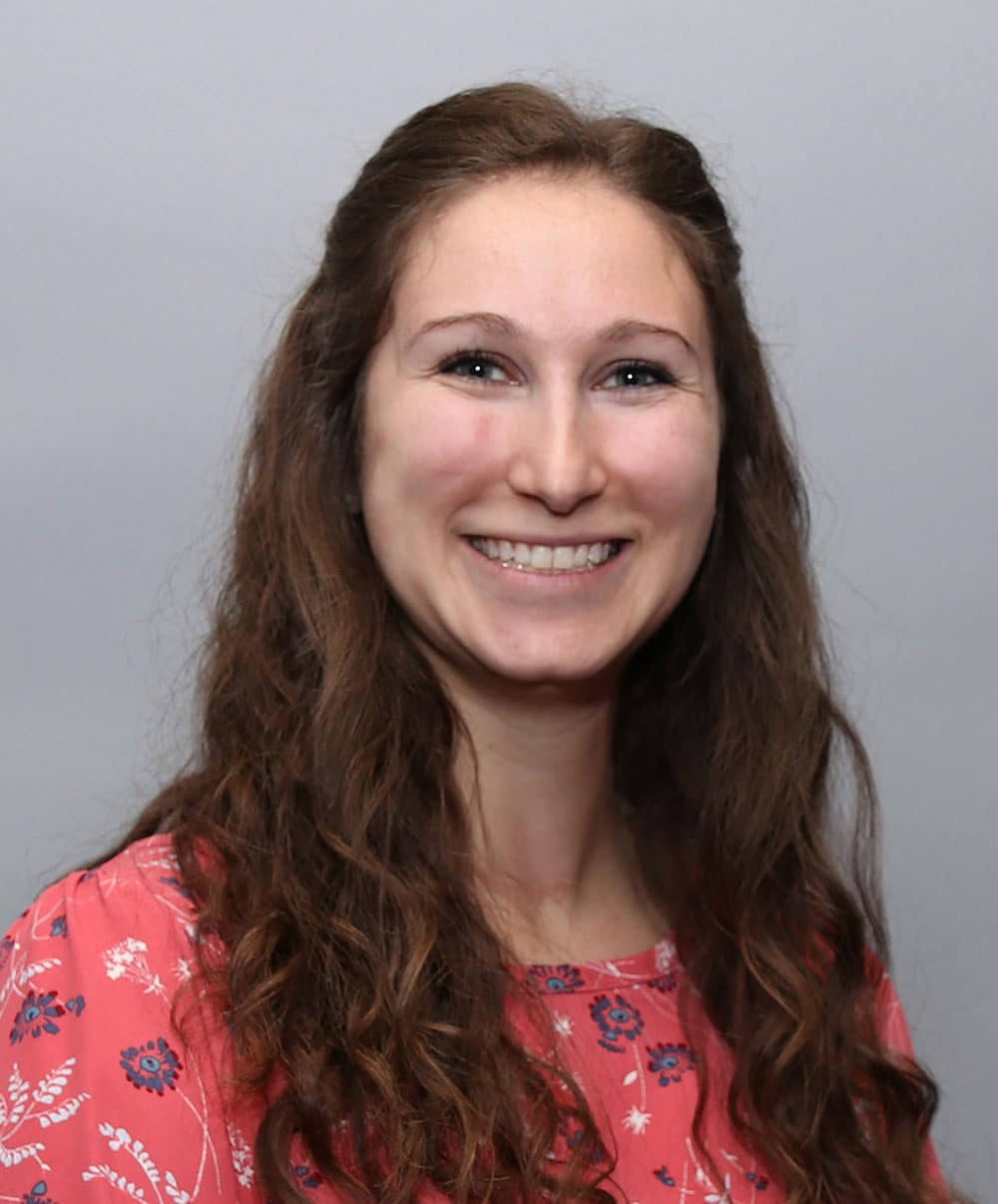
A graduate of Worcester Polytechnic Institute and MCPHS University, Lauren has been practicing as a physician assistant since 2016.
Lauren decided to become an advanced practitioner after she shadowed a PA during her undergraduate years and learned more about the profession. “While shadowing I was able to see a variety of diagnoses, and I learned something new every day,” she explains. “I loved the atmosphere of learning and getting to know patients the way the PA I shadowed did – and that made me realize that being a physician assistant was the perfect fit for me.” Lauren loves working in pediatrics treating children and adolescents each day. “I enjoy kids for a lot of reasons. Kids are funny, especially when they don’t mean to be. They always keep you on your toes. But what I love most about pediatrics is getting to know kids and their families – and I especially love being able to watch kids grow up and to see the people they become.”
Lauren really likes getting to know her patients and understanding their health concerns. She believes that a key part of her practice is motivating her patients to make lifestyle changes that will eventually lead to better health. “During a visit, I think it’s more than just asking the right questions or even curing an illness, I think it’s really important to work closely with patients and motivate them to improve their overall health. Simple changes can really make a difference in the long run.”
Originally from Massachusetts, Lauren enjoys reading, hiking and kayaking in her free time.
Offices and Locations
Overview
Specialties
Pediatrics
Partnering Provider
Certifications
Board Certified by the National Commission on Certification of Physician Assistants
Education
Master of Physician Assistant Studies: MCPHS University
Bachelor of Science: Worcester Polytechnic Institute
Insurance
Related News and Articles